



 Create Report
To create a Reports Wand report, click the Create button on the Report section of the tool bar.
This will bring up a list of reports available to the currently selected responsibility. The description for the report can be lengthy and will only be displayed once a report is selected.
 The below screenshots depict the standard version of the Create Report dialog. If Reports Wand Insights or Angles for Oracle Views is enabled, please see the links at the bottom of this page.
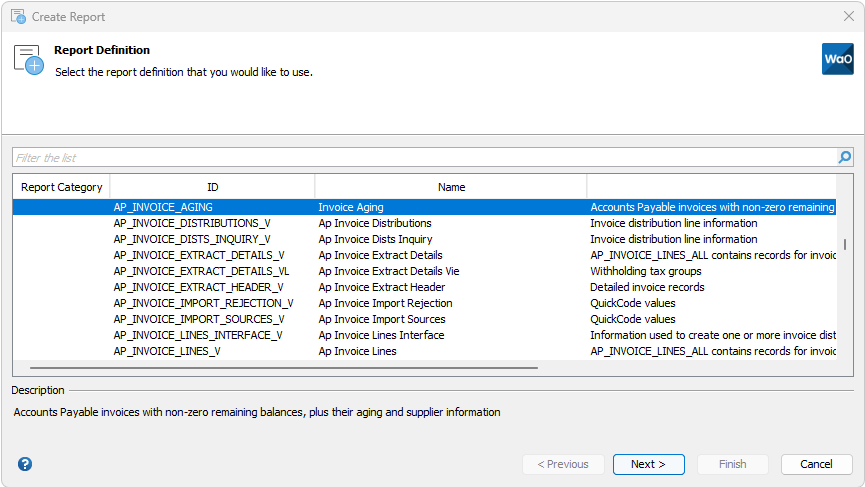
Select the required report, either by double clicking the report, or clicking it once, and then clicking Next. The layout editor is shown, where you can customize the report by choosing which fields are displayed, the order of the fields and set sorting and sub total options.

Click Data Preview to view the first five rows of report output. The Data Preview button is disabled for report definitions which contain bind variables (parameters) as preview is not possible for these.
Click Finish to create the report in a new Excel workbook.
Reports Wand insights
If Reports Wand Insights is enabled, additional fields and search functionality is available, which is detailed in the Insights Search Report Definitions page.
Angles for Oracle Views
If Angles for Oracle Views is installed, additional fields and search functionality is available, which is detailed in the Angles for Oracle page.
Platform Data Sharing
Business Views created with Angles Professional as part of Platform Data Sharing, can be created with Reports Wand. For more information on Platform Data Sharing Business Views please see the Platform Data Sharing page.