


Connection Manager
The Multi Data Source (MDS) Connection Manager allows administrators to create, edit, delete and test connections to data sources other than SAP. It will also users to add specific database login credentials and local driver details to a connection they may need in one of their reports.
 Before creating a new connection, please ensure the JDBC drivers are available on the user’s machine in an accessible folder.
MDS Connections Information
| Field | Description |
|---|---|
| Id | Connection identifier. |
| Description | Information about the connection. |
| Connection String | Connection String used to connection to the database. |
| Username | Username for database. |
| Password | Password for database. |
| Database Type | Type of database that the connection is for. |
| Public | Is the connection public and can be configured and used by other Reports Wand users. |
| Driver Folder | The folder on the local users PC where the JDBC database driver resides. |
| Driver Class | Once the Driver Folder has been selected, a list of valid Driver Classes will be made a available for selection. |
| Owner | Who owns the connection, i.e. who originally created the connection. An Administrator will see user connections, and who owns them. |
| Updated By | The user who last updated the connection. |
| Update Date | The date the connection was last updated on. |
MDS Connection Access
The Connection Manager Dialog has different access levels for Administrators and Users.
Public Connections have been created by a Reports Wand Administrator, and are available for update with user specific details. User connections are connections that have been updated on a user level, and will share a connection Id with a public connection.| Administrator | User | |
|---|---|---|
| See or Select a connection | Yes – both public and user connections. | Yes – Only public connections |
| Create a connection | Yes | No |
| Update a connection | Yes – both public and user connections. | Yes – only by editing a public connection, which creates a clone, and uses user specific details. Only username, password, driver folder and driver class details can be updated. |
| Delete a connection | Yes – both public and user connections. | No |
| Test a connection | Yes – both public and user connections. | Yes |
Create a New MDS Connection
Click on “New” to create a new MDS connection. Enter the relevant connection details, select the appropriate database type and driver details. Click “Create” to complete the process.
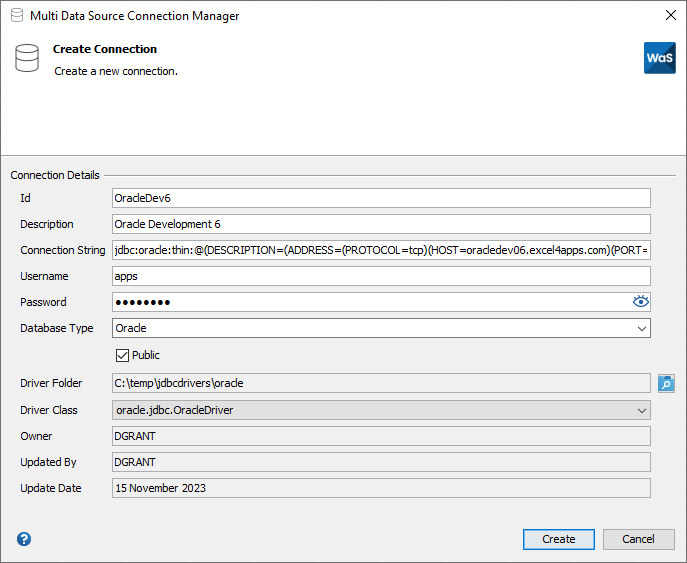
Edit a MDS Connection
Select the MDS connection you want to update. Click on “Edit” to update MDS connection. Click “Save” to finalize the changes.
Delete a MDS Connection
Select the MDS connection you want to delete. Click on “Delete”, then “Delete” again to confirm that it is the MDS connection you want to delete.
Test a MDS Connection
Select the MDS connection you want to test. Click on “Test”. A validation will be displayed on the dialog header. If the connection fails, an error message will be displayed on the dialog header.