

Contact Us
Index
Version 26.3
Version 20.3 Version 20.4 Version 21.1 Version 25.2 Version 25.3 Version 25.4 Version 26.1 Version 26.2
Contact Us
Wands for Oracle Cloud 26.3 – Home
Wands
Installation
Launch
Launch Multiple Environments
Platform Logon
Insert insightsoftware Function
Combine Text
Last Refreshed By
Last Refreshed Time
Split Text
Tools (Wands)
Common Options
Shared Templates Drive
Oracle Cloud Connector Database
Navigator
Open a File
Edit a File
Create a File
File Server
Drive Types
Dropbox
Delete a File
Snapshot
Administrator
Custom Drill Columns
Subledger Custom Columns
Journal Custom Columns
Add a Custom Drilldown Column
System Administrator Options
System Administrator Delimiter Options
System Administrator Configuration Options
System Administrator Server Information
System Administrator User Options
About
Lineos
Exit
Help and Shortcuts
Excel Error
GL Wand
Live Data
Ledger and Segment Selector
Change Data Access Set
Discover
Discover Child Ranges
Discover Segment Properties
Expand and Explode
Explode Segment Values
Explode Segment Value Hierarchy
Expand Segment Values
Expand Segment Value Hierarchy
Discover Segment Values
Discover Level
Discover Period Names
List of Values
List of Values – Create
Insert GL Wand Function
Segment End Date
Segment Description
Ledger Name
Segment Tree
Account Type
Next Segment Value
Ledger Set
Parent Flag
Enabled Flag
Segment Start Date
Period Name
Financial Category
Period Name by Date
Period Start Date
Period End Date
Period Offset
Previous Segment Value
Functional Currency
Get Balance
Multiple Ledgers
Get Balance Options
Calculating
Execute Drilldown
View Transaction
Drill Using a Saved Template
Analyze Balances
Drill to Journal or Subledger
Drill Criteria Sheets
Drill Criteria – Balance
Drill Criteria – Journal Extract
Customize Drilldown
Edit Template Layout
Save Template Layout
Manage Templates
GL Wand Tools
GL Wand User Options
Other Tools
Hide Zeros
Reports Wand
Report
Execute Report
Create Report
Functions
Drill to Saved Template
Drill on Function
Modify Run Report Function
Run Report Order
Run Report Filter
Insert Run Report Function
Calculation
Calculate Reports Wand Functions
Calculation Mode
Show
Template Manager
Report Editor
Parameter List
Tools
Create List of Values
Show List of Values
Clean Template
Report Distribution Manager
Create RDM Template
Advanced Options
Email
Drilldowns
Parameters
Source Report
Named Ranges
Edit RDM Template
Execute Report Distribution Manager
Load and Validation
Execution
Scheduler
Running the Scheduler
Create Schedule
RDM User Options
SMTP Email Settings
chat icon - ignore
Live Chat
Chat Offline

Create a File

The Create action can be accessed by selecting the Create Button or using the Drag & Drop function.This option is used to create a new Shared Templates file:
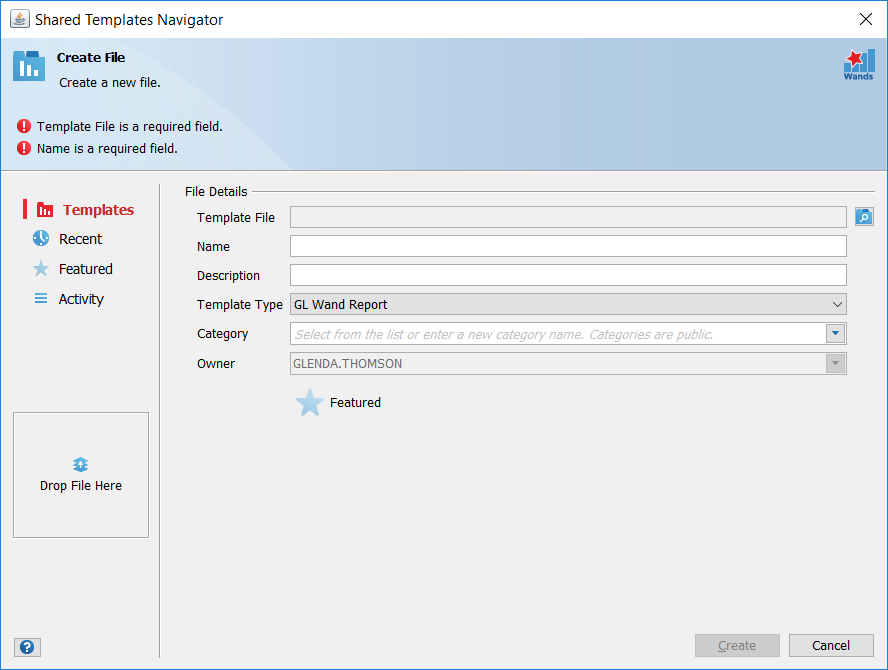
File Details

Field Name Description
Template File Provides a file navigation dialog used to select the file you wish to upload.
Name A name for the file. Defaults to the Template File name.
Description Description of the file.
Template Type Templates can be classified as follows:

  • GL Wand Report
  • RDM Template
  • RDM Scheduler Template
  • Budget Wand Upload Template
  • Reports Wand Template

The Template Type is defaulted to the current Shared Templates Context controlled by the Display Templates For filter.

Category The file category. You can select from the existing list or create a new category simply by typing a new one. Categories are public and shared by all users.
Owner The user that owns the file.
Featured When featuring a file, it is included in the Featured view. This highlights a file to other users expressing the file’s importance and/or usefulness.

Drag & Drop

You can use the Drag & Drop function to effortlessly add files to the Shared Templates Drive:

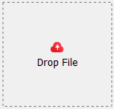
  1. Select a file from any folder or your desktop and drag the file to the Drop file here area on the Shared Templates Navigator:
  2. Release the file once the Drag and Drop area is activated. The Create file form will then be launched and you will have the opportunity to edit and add to your file’s defaulted attributes.
  3. Select save to upload the file.