Connections Manager
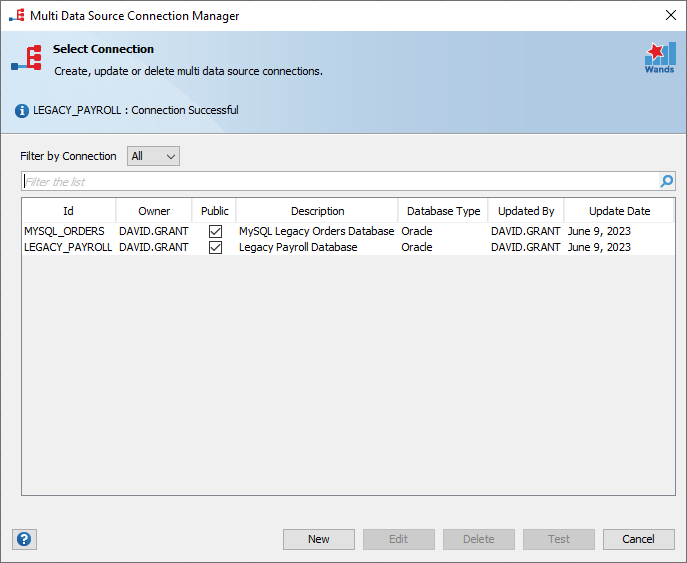
The Multi Data Source (MDS) Connection Manager allows administrators to create, edit, delete and test connections to data sources other than Oracle e-Business Suite instance that Wands for Oracle is installed on. It will also allow users to add specific database login credentials and local driver details to a connection they may need to run any MDS reports they have access to.
 Before creating a new connection, please ensure the JDBC drivers are available on the user’s machine in an accessible folder.

MDS Connections Information
| Field | Description |
|---|---|
| Id | Connection identifier. |
| Description | Information about the connection. |
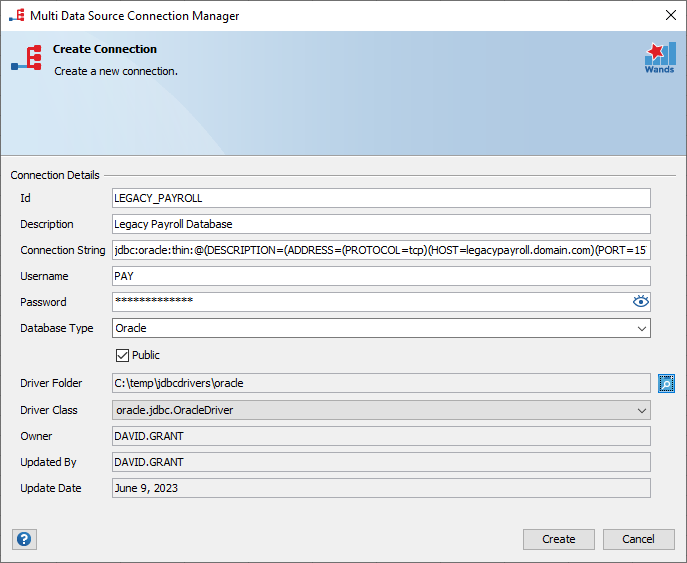
| Connection String | Connection String used to connection to the database. |
| Username | Username for database. |
| Password | Password for database. |
| Database Type | Type of database that the connection is for. |
| Public | Is the connection public and can be configured and used by other Reports Wand users. |
| Driver Folder | The folder on the local users PC where the JDBC database driver resides. |
| Driver Class | Once the Driver Folder has been selected, a list of valid Driver Classes will be made a available for selection. |
| Owner | Who owns the connection, i.e. who originally created the connection. An Administrator will see user connections, and who owns them. |
| Updated By | The user who last updated the connection. |
| Update Date | The date the connection was last updated on. |
MDS Connection Access
The Connection Manager Dialog has different access levels for Administrators and Users.
Public Connections have been created by a Reports Wand Administrator, and are available for update with user specific details. User connections are connections that have been updated on a user level, and will share a connection Id with a public connection.| Administrator | User | |
|---|---|---|
| See or Select a connection | Yes – both public and user connections. | Yes – Only public connections |
| Create a connection | Yes | No |
| Update a connection | Yes – both public and user connections. | Yes – only by editing a public connection, which creates a clone, and uses user specific details. Only username, password, driver folder and driver class details can be updated. |
| Delete a connection | Yes – both public and user connections. | No |
| Test a connection | Yes – both public and user connections. | Yes |
Create a New MDS Connection
Click on “New” to create a new MDS connection. Enter the relevant connection details, select the appropriate database type and driver details. Click “Create” to complete the process.
Edit a MDS Connection
Select the MDS connection you want to update. Click on “Edit” to update MDS connection. Click “Save” to finalize the changes.
Delete a MDS Connection
Select the MDS connection you want to delete. Click on “Delete”, then “Delete” again to confirm that it is the MDS connection you want to delete.
Test a MDS Connection
Select the MDS connection you want to test. Click on “Test”. A validation will be displayed on the dialog header. If the connection fails, an error message will be displayed on the dialog header.