



 Journal Attachments
The Journal Attachments tool allows you to capture attachments for a selected journal. If the journal has not already been uploaded into Oracle, the attachment references are saved on the Journal Wand template and can be uploaded with the journal into Oracle at a later stage (see Loading Journals). If the selected journal already exists in Oracle, then its attachments can be uploaded directly from the Journal Attachments tool. Attachments that are successfully uploaded can only be edited from within Oracle.
In order to use the Journal Attachments functionality, the Upload Journal Attachments option must be enabled. Refer to Journal Wand User Options for more information. If the option is not enabled, the following error is displayed when clicking the Attachments icon:

Journal Selection
Before opening the Journal Attachments tool, it is necessary to select the journal in the template to which the attachments will be linked.
In the below example, H10 is the active cell, therefore the attachments will be linked to journal J1:

The following rules apply when selecting a journal in the template:
1. Valid Journal Wand Template Active
To invoke the Journal Attachments tool, there must be a valid Journal Wand template open and active, failing which the following error is displayed:

2. Populated Row Selected
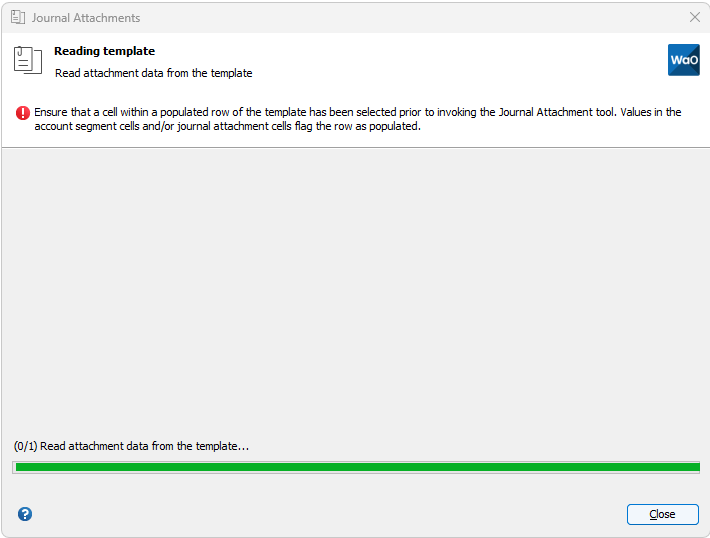
In addition, a populated row of the template must be selected i.e. one or more of the account segment cells and/or journal attachment cells must contain a value (this signifies to Journal Wand that there is a row in the template to be read). In the below example, an empty row is selected which results in an error.

3. Single Row Selected
Be sure to select one or more cells in a single row before invoking the Journal Attachments tool. In the below example, cells in multiple rows are selected which results in an error.


4. Within Readable Range Selected
There should be no blank rows between the selected (populated) row and the previously populated row. In the example below, the selection of cells in row 13 will result in an error as row 12 is empty and the previously populated row is 11. As row 12 is empty, row 12 and greater will not be read by Journal Wand.

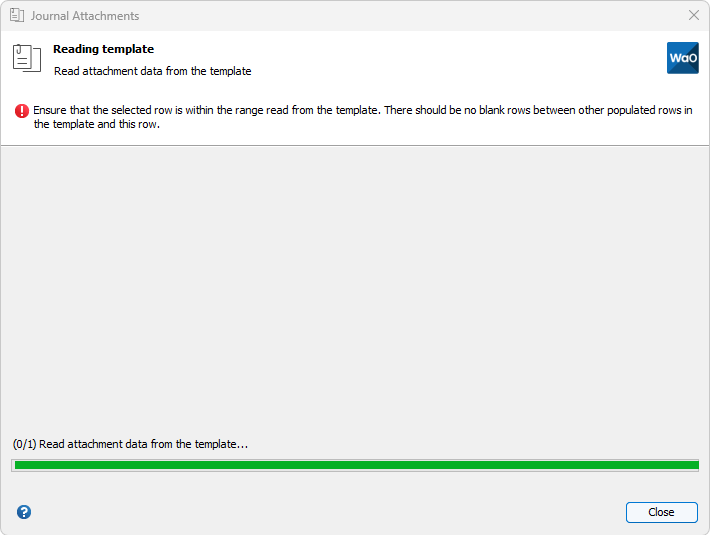
Note that selecting one or more cells in row 11, provided row 11 has data populated in the account segment and/or attachment cells, is satisfactory and will result in attachments being linked to the journal above this row.
The Journal Attachments Tool
Clicking the Attachments icon on the Journal Wand ribbon, launches the Journal Attachments tool. If attachments are already populated on the template for the selected journal, these will be displayed in the list.
In the below example, journal J1 is not uploaded and its attachment with sequence 10 is displayed in the list. As the journal does not exist in Oracle, the Upload All button is not enabled.

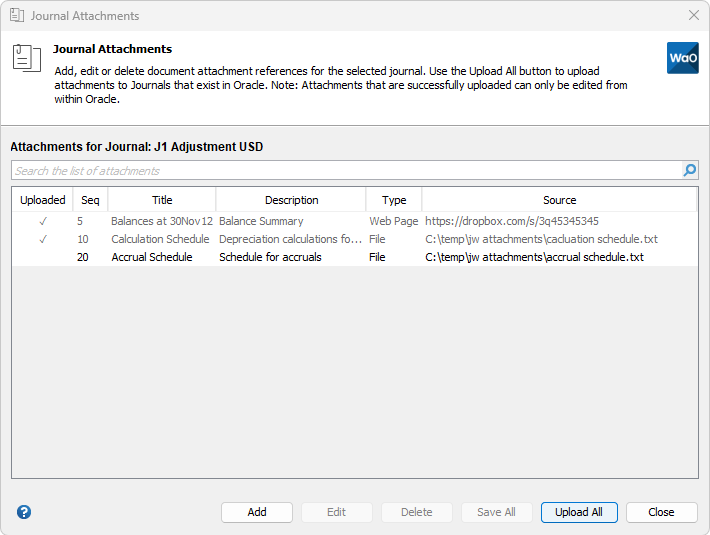
If the journal has already been uploaded to Oracle and attachments exist for the journal (in Oracle), the existing attachments are displayed in addition to any new attachments not already uploaded. Note that attachments that exist in Oracle can only be edited from within Oracle, and are greyed out in this dialog list. In the example below, journal J1 Adjustment USD exists in Oracle and attachments with sequences 5 and 10 also exist in Oracle. The attachment with sequence 20 is ready to be uploaded, therefore the Upload All button is enabled.
Adding Attachments
Click the Add button to add a new document attachment reference. The following dialog is displayed:

To add the new attachment reference to the list, click OK, else click Cancel to discard. The OK button is enabled if there are no validation errors for the attachment record (refer to Journal Wand Messages for more information on validation error messages).

Clicking OK to add an attachment reference, adds it to the list of attachment references for the current journal. The attachment is not added in Oracle until the set of attachment references is uploaded to Oracle.
Attachment Types
The following attachment types may be captured and uploaded:
- File
- Long Text
- Short Text
- Web Page (URL)
The Source field stores the source value for the various attachment types. Depending on the Type selected in the Create/Edit dialog, a different Source field size is displayed. The validation of the source value is also dependent on the type of source. For more information on the Source field validations, refer to Journal Wand Messages.
Editing Attachments
Select an attachment in the list and click Edit, as shown below:

The following dialog is displayed:

To save changes made to the attachment reference, click the Save button, else click Cancel to discard the changes. The Save button is enabled if there are no validation errors for the attachment record (refer to Journal Wand Messages for more information on validation error messages).
Clicking Save, saves changes made to an attachment reference not uploaded to Oracle. Attachments already successfully uploaded, can only be edited from within Oracle.
Deleting Attachments
To remove an attachment reference from the journal, select the attachment in the list and press Delete. The below dialog is displayed. Click Delete to confirm deletion, else click Cancel.

Clicking Delete, deletes an attachment reference, which is not yet uploaded to Oracle, from the current journal. Once successfully uploaded, attachments can only be deleted from within Oracle.
Saving Attachment Data to the Template
If attachment references have been added, edited or deleted via the Journal Attachments dialog (i.e. attachment details have changed since the dialog was opened and differ from the template), the Save All button is enabled. Pressing Save All updates the journal’s attachment data in the template and displays the attachment columns if they were not previously visible in the template.
Uploading Attachments
The Upload All button is enabled if the journal exists in Oracle and all attachment references, not yet uploaded to Oracle, are valid. Clicking Upload All does the following:
- Applies changes to the template (see Saving Attachment Data to the Template ), and
- Uploads all attachments, not already uploaded, for the current journal.
Once uploaded, a check (tick) symbol is displayed in the Uploaded column for each attachment successfully uploaded. In the event that an attachment fails to upload to Oracle, a cross symbol is displayed in the Uploaded column for the attachment. Attachments successfully uploaded can only be edited from within Oracle.

Known Issue: After attachment upload, a check (tick) symbol should be displayed in the Uploaded column for each attachment successfully uploaded. However, in templates created before Wands version 5.14, a series of Wingding font symbols display instead. The reason for this is that the column is formatted as Text in pre-5.14 templates, and it needs to be formatted as General in order to correctly resolve the function now written to the column’s cells. To correct this issue, reformat the Uploaded column to General and save the template, which will correct the template for future uploads. Optionally, to correct it where it is currently incorrectly displayed, first format the column as General and then force recalculation of the formula in each affected cell by selecting the cell and pressing F2 followed by Enter.