

Contact Us
Index
Version 26.1
Version 20.3 Version 20.4 Version 21.1 Version 25.2 Version 25.3 Version 25.4 Version 26.2 Version 26.3
Contact Us
Wands for Oracle Cloud 26.1 – Home
Wands
Launch
Installation
Platform Logon
Insert insightsoftware Function
Combine Text
Last Refreshed By
Split Text
Last Refreshed Time
Tools (Wands)
Common Options
Shared Templates Drive
Oracle Cloud Connector Database
Navigator
Open a File
Create a File
Edit a File
File Server
Drive Types
Dropbox
Delete a File
Snapshot
Administrator
Custom Drill Columns
Subledger Custom Columns
Journal Custom Columns
Add a Custom Drilldown Column
System Administrator Options
System Administrator Delimiter Options
System Administrator Configuration Options
System Administrator Server Information
System Administrator User Options
About
Lineos
Exit
Help and Shortcuts
Excel Error
GL Wand
Change Data Access Set
Ledger and Segment Selector
Live Data
Discover
Discover Segment Properties
Expand and Explode
Explode Segment Values
Explode Segment Value Hierarchy
Expand Segment Values
Expand Segment Value Hierarchy
Discover Segment Values
Discover Level
Discover Period Names
List of Values
List of Values – Create
Insert GL Wand Function
Segment End Date
Segment Description
Ledger Name
Get Balance
Get Balance Options
Multiple Ledgers
Period Offset
Period End Date
Period Start Date
Period Name by Date
Financial Category
Period Name
Segment Start Date
Enabled Flag
Parent Flag
Segment Tree
Account Type
Next Segment Value
Ledger Set
Previous Segment Value
Functional Currency
Calculating
Execute Drilldown
View Transaction
Analyze Balances
Drill to Journal or Subledger
Drill Using a Saved Template
Drill Criteria Sheets
Drill Criteria – Balance
Drill Criteria – Journal Extract
Customize Drilldown
Edit Template Layout
Save Template Layout
Manage Templates
GL Wand Tools
GL Wand User Options
Other Tools
Hide Zeros
Reports Wand
Report
Execute Report
Create Report
Functions
Drill to Saved Template
Drill on Function
Modify Run Report Function
Run Report Order
Run Report Filter
Insert Run Report Function
Calculation
Calculate Reports Wand Functions
Calculation Mode
Show
Template Manager
Report Editor
Parameter List
Tools
Create List of Values
Show List of Values
Clean Template
Report Distribution Manager
Create RDM Template
Advanced Options
Email
Drilldowns
Parameters
Source Report
Named Ranges
Edit RDM Template
Execute Report Distribution Manager
Execution
Load and Validation
Scheduler
Running the Scheduler
Create Schedule
RDM User Options
SMTP Email Settings
chat icon - ignore
Live Chat
Chat Offline

Load and Validation

Execution begins with loading the selected rows from the RDM template. Each row is called a RDM job and the number of rows selected is based on the execution action selected from the toolbar.

The Validation Level selected in the RDM User Options determines if validation and confirmation is performed. When the validation of all the selected jobs is completed, any validation errors are shown by highlighting the specific spreadsheet cell and adding a comment to the cell explaining the error. In order to simplify the identification of jobs with validation errors the Source Report cell is also highlighted.

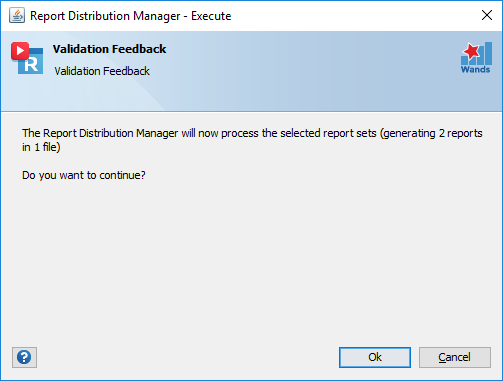
If validation is passed and the Validation Level requires confirmation, a confirmation dialog will be presented which will provide information on the number of reports and output files that will be generated.
Open Workbooks

If any non RDM Template workbooks are open you will first be prompted to confirm if you would like to continue, opting to continue without closing these workbooks could result in an execution failure. If any of the source report workbooks are open during validation, the validation process will stop immediately.

Warnings

Cell(s) marked with yellow indicates a warning. If the source report cell is highlighted in yellow this indicates that the output file already exists and will be merged.