



Navigator
The Navigator is the user interface for the Shared Templates Drive. It consists of four convenient views that provide quick and easy access to your files:
- Templates
- Recent
- Featured
- Activity
Templates is the default view, users can switch between views by selecting the desired option from the menu sidebar.
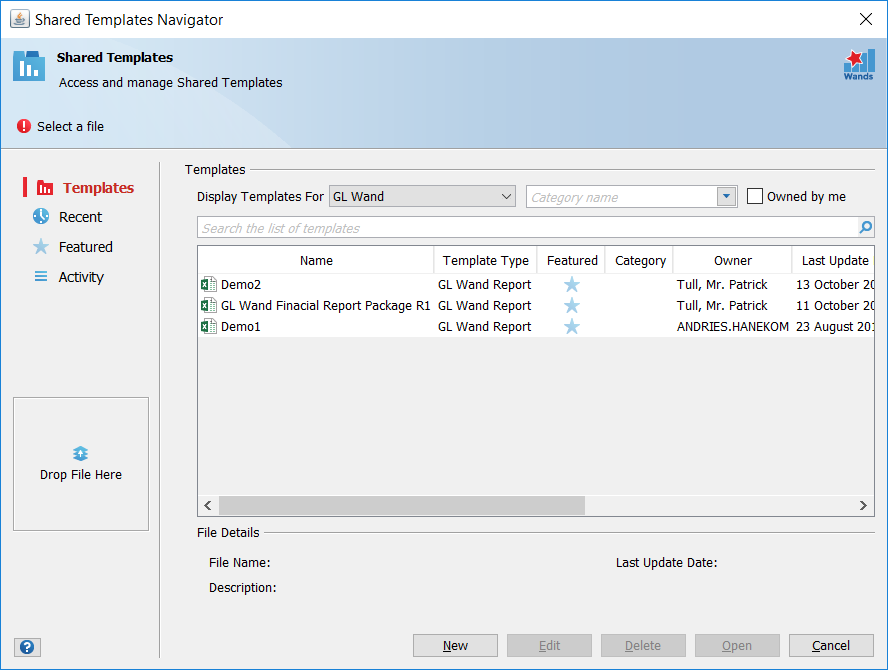
Templates
The default Templates view includes the following components:
Template Context
The Template Context, Display Templates For, filters the Templates view to display only the selected template types. The filter is automatically set based on the menu used to launch the Navigator. It also sets the context during the template creation process, defaulting the Template Type to the selected filter setting.
The Template Context is shared between all four the Shared Templates views and provides the same functionality across all views.
Category Name Filter
The Category Name list allows you to select a specific category to further filter the Templates view to display only the templates matching the selected category. The filter is blank by default, displaying all templates. To clear the filter once selected, choose the blank value from the list.
Owned by me Filter
Select the Owned by me option to only display the files owned by you. The option is disabled by default.
Search and Template List Table
When opening Shared Templates your cursor will default to the search templates component. Use the search to quickly filter the current view using your search term. The File List Table displays details of the Shared Templates files and by default is sorted to display the most recently created or updated files at the top. The default sort order can be changed by selecting any of the table columns.
File Details
Displays additional data related to the currently selected file that is not immediately visible or displayed on the Template List Table.
Actions
The Shared Templates user interface provides access to the following actions. These actions are accessible from all four the views:
- Create – Activated by using the Create button or the File Drag & Drop functionality.
- Edit – Activated by selecting a file and using the Edit Button.
- Delete – Select a file and click the Delete Button.
- Open – Select a file and click the Open Button or double-click a file.
- Cancel – Click the Cancel button.
The Edit, Delete and Open action buttons are disabled if a template is not selected.
Recent
The Recent view presents a tabled list of files recently accessed by the current user, the view will only display the last 20 files accessed. Access is defined as any activity related to the Creating, Editing and/or Opening of a file.
Featured
The Featured view presents the user with a tabled list of Featured files.
Activity
The Activity view presents a snapshot of recent activity within the Shared Templates Drive. The view only displays the 20 most recent events. Activity is defined as any Create or Edit activity performed on a Shared Templates file by any user.